
User guide · Sticksmith 1.0.0
Play your e-drums through Sticksmith
Everything you need to set up Sticksmith with your electronic drum kit, choose and adjust kits, get the delay down, and fix the common problems.
Getting started
- Download Sticksmith. Get the free 14-day trial, or the full version after you buy it. Both are the same app.
- Open it. Sticksmith isn't code-signed yet, so your computer asks once whether to trust it:
- Windows: if “Windows protected your PC” appears, click More info, then Run anyway.
- macOS: move Sticksmith.app into Applications and double-click it. If macOS says it can't verify the developer, click Done, open System Settings → Privacy & Security, scroll down and click Open Anyway.
- Linux: run
./install.shto add Sticksmith to your app menu, or start./sticksmithdirectly.
- Connect your drum module to the computer with a USB cable and switch it on. Sticksmith finds it by itself: the dot at the top left turns green and shows the module's name.
- Hit a drum. The built-in starter kit plays straight away. Pick another kit on the left, or click Get free kits… for sampled acoustic kits.
Use headphones or speakers plugged into your computer (or an audio interface), not the drum module's own output. The module only sends Sticksmith which drum you hit and how hard.
The main screen
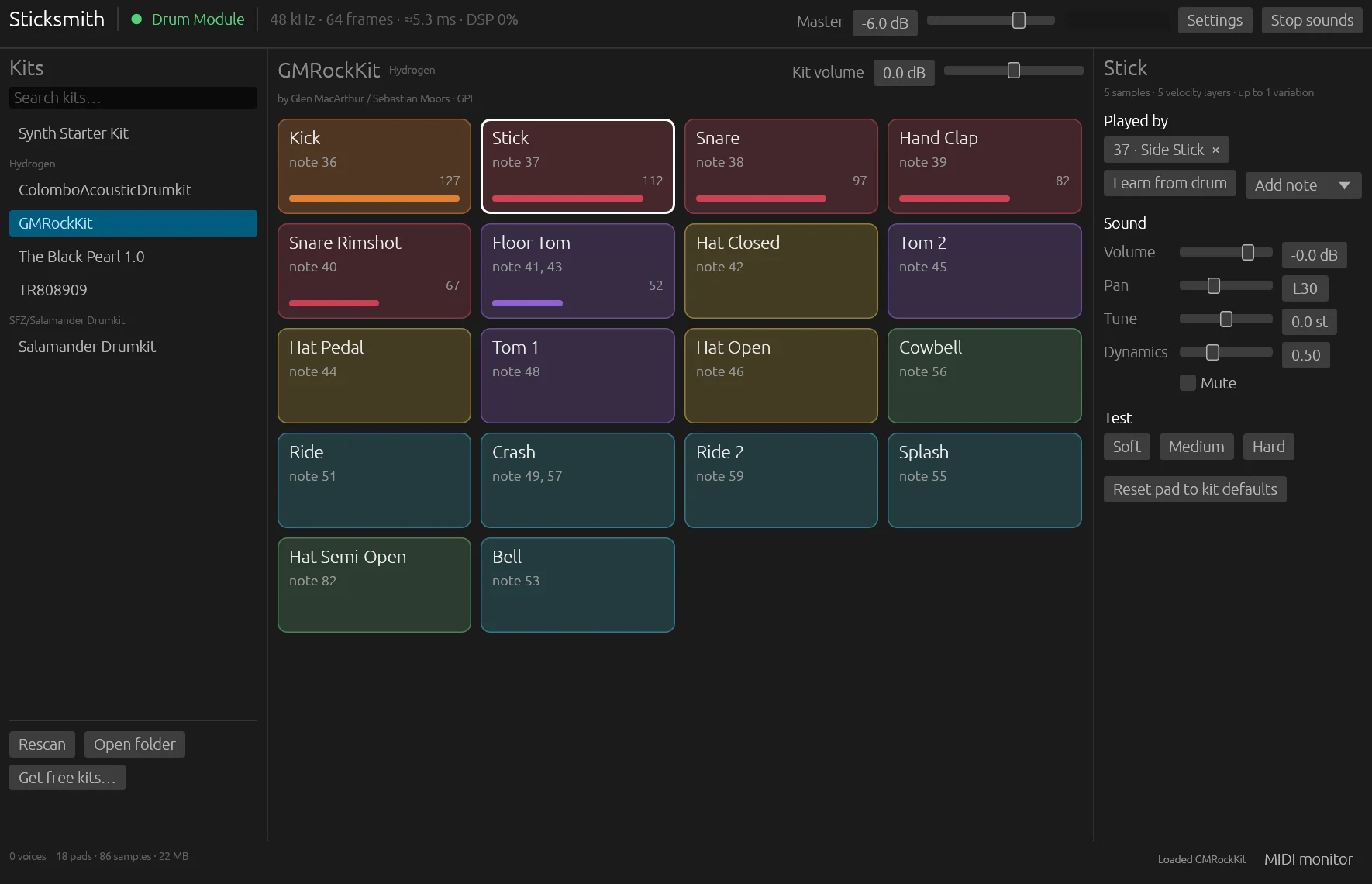
- Top bar
- The trial button (while you're on the trial), your drum module with a green or red dot, the audio status (sample rate, buffer size, total delay in milliseconds and how busy the audio is), Master volume with a level meter, Settings and Stop sounds.
- Kits, on the left
- Every kit Sticksmith found, grouped by type, with a search box. Rescan, Open folder and Get free kits… are underneath.
- Pads, in the middle
- One tile per sound in the kit. Each shows the notes that play it and a bar for how hard the last hit was (1 to 127). Click a tile to hear it. Kit volume sits above the pads.
- Pad editor, on the right
- Settings for the selected pad: which drums play it and how it sounds. See Shaping each drum.
- Status bar, at the bottom
- How many sounds are ringing, a red silent hits count if any hit made no sound, the kit's size, the hi-hat pedal position, kit warnings, and the MIDI monitor button.
Kits
Click a kit in the list to load it. Big kits take a moment, and Sticksmith shows its progress while they load. Type in Search kits… to filter a long list.
Free kits
Click Get free kits… and then Download next to any kit. It appears in your list when it's done.
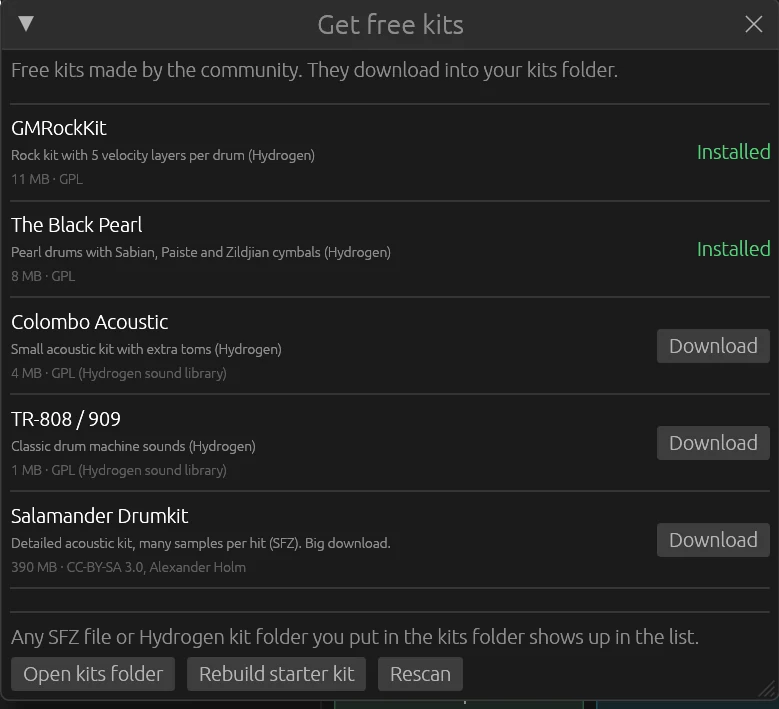
The kits are GMRockKit, The Black Pearl, Colombo Acoustic, TR-808/909 and the Salamander Drumkit. The Salamander kit is the most detailed and also the biggest, a 390 MB download. The free kits are made by their creators and keep their own licenses, shown in the window.
Kits from elsewhere
Sticksmith plays SFZ kits and Hydrogen kits (a folder with a drumkit.xml). Put the kit in your kits folder (Open folder under the list takes you there) and click Rescan. To use kits from another folder without moving them, add it in Settings → Kit folders.
Imported kits are matched to your module's drums automatically, and missing drums are filled in: a kit with two toms still sounds on your third tom.
Kit volume and the starter kit
Kit volume, above the pads, sets this kit's level against your other kits, so switching kits doesn't jump in loudness. It's saved with the kit.
The Synth Starter Kit is made on first launch. If you change or delete it, Rebuild starter kit in the Get free kits window makes a fresh one.
Kit warnings
Some kits have small gaps, such as no sample for the very hardest hits. Sticksmith fixes these as the kit loads, so every hit still sounds, and lists what it did under the warnings button in the status bar. You don't need to do anything about them.
Shaping each drum
Click a pad on screen, or hit a drum, to select it. The pad editor on the right then changes just that sound:
- Volume
- Louder or softer, in decibels.
- Pan
- Left or right in your headphones. C is centre.
- Tune
- Pitch, in semitones. Tune toms down for a fatter sound, or a snare up to make it crack.
- Dynamics
- How much softer quiet hits are. 0 plays every hit at full volume, 0.5 follows how hard you hit, and 1 makes soft hits much quieter.
- Mute
- Silences the pad.
- Test
- Soft, Medium and Hard play the pad at three strengths, so you can hear a change without picking up the sticks.
Reset pad to kit defaults undoes your changes to that pad.
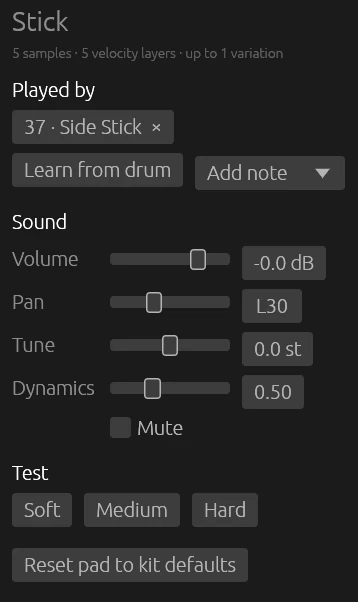
Your changes are saved automatically for each kit, in a separate file. The kit's own files are never changed, so you can always get back to the original sound.
Some pads stop each other, like a closed hi-hat cutting off the open one. The pad editor shows these as Chokes group and Choked by group.
Your drum module
Any drum module that connects to a computer by USB (or through a MIDI interface) works. Sticksmith connects to it automatically when it's plugged in and switched on, and reconnects if you unplug it. Alesis modules are recognised by name. If Sticksmith picks the wrong device, choose yours in Settings → Drum module (MIDI input), then click Rescan if it isn't listed.
Which drum plays which sound
Your module sends a note number for each drum, and each pad lists the notes that play it under Played by. Alesis modules and most others use the standard General MIDI numbers for the main drums, so kits line up without any setup. To change one:
- Select the pad whose sound you want.
- Click Learn from drum.
- Hit the drum on your kit.
That drum now plays this pad, and stops playing the sound it played before. You can also pick a note from Add note, or click the × on a note to remove it. These changes belong to the kit you're playing.
A drum that's wrong in every kit
If one drum plays the wrong sound whichever kit you load, your module sends an unusual note for it. Fix it once for all kits in Settings → Module note mapping: click Add mapping (hit a drum), hit the drum, then choose what it should play.
Hi-hat pedal and cymbal grabs
If your module sends the hi-hat pedal position, the status bar shows it, and kits with open and closed hi-hat samples follow the pedal. If your module supports cymbal chokes, grabbing a cymbal's edge stops it ringing in Sticksmith too.
Sound and latency
Latency is the delay between hitting a drum and hearing it. Sticksmith keeps it as low as your computer allows; the top bar shows the total in milliseconds. Below about 10 ms, most drummers can't feel any delay.
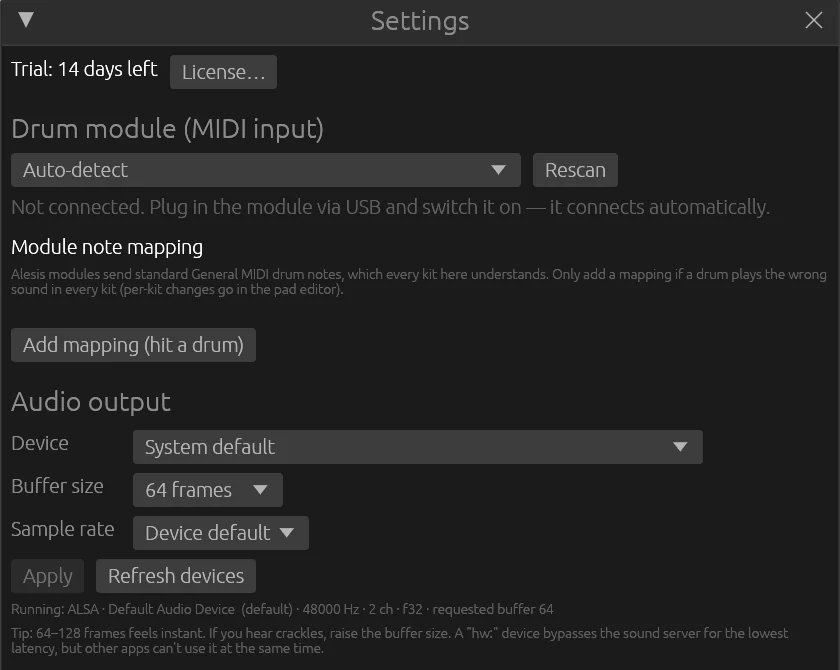
Change the audio output in Settings → Audio output, then click Apply:
- Device
- Where the sound goes. System default follows your computer's setting. Click Refresh devices after plugging in headphones or an audio interface.
- Buffer size
- The main control for delay. 64 to 128 frames feels instant. If you hear crackles or pops, choose the next larger size.
- Sample rate
- Leave it at Device default unless you have a reason to change it.
Getting the delay down
- Listen through your computer's headphone output or an audio interface. Monitors and TVs on HDMI add their own delay, which Sticksmith can't see or remove.
- Windows: Sticksmith uses the standard Windows audio system, which adds a little delay: expect around 10 to 20 ms. ASIO drivers aren't supported yet.
- macOS and Linux: about 5 ms at the default 64-frame buffer.
- Linux: devices whose name starts with
hw:skip the sound server for the lowest delay, but other apps can't use that sound card while Sticksmith does.
Volume
Master in the top bar sets the overall volume. If the top bar says limiting … dB — lower Master, the kit is too loud and Sticksmith is holding the peaks down to stop distortion: turn Master down until the message goes. Stop sounds fades out everything that's ringing.
Troubleshooting
The dot at the top stays red
Sticksmith can't see your drum module. Check that it's switched on and connected by its USB cable, not only an audio cable. Try another USB port or cable. Then open Settings → Drum module (MIDI input), click Rescan, and choose your module from the list if it appears there.
A drum makes no sound
Open the MIDI monitor (bottom right, or click the red silent hits count). Every hit is listed with what happened to it: the pad and samples it played, or a red SILENT line with the reason.

- No pad uses this note: the kit has no sound assigned to that drum. Select the pad you want it to play and use Learn from drum. In the example above, the kit has no ride cymbal, so the ride (note 51) is silent.
- Pad has no sample for this hit: the kit is missing a sound for that drum or that strength. Try another kit.
- Nothing appears when you hit the drum: Sticksmith isn't receiving anything from the module. See the red-dot problem above.
A drum plays the wrong sound
In one kit, fix it with Learn from drum in the pad editor. In every kit, add a Module note mapping in Settings. See Your drum module.
Crackles, pops or dropouts
Your computer can't fill the audio buffer in time. Raise the Buffer size one step in Settings. Closing other busy apps helps, and so does plugging a laptop into power.
The sound feels late
Lower the buffer size, and listen through the computer's headphone output or an audio interface, not an HDMI monitor or TV. See Sound and latency.
The sound stopped
If an audio device is unplugged, Sticksmith says so and keeps retrying. Plug it back in, or choose another device in Settings and click Apply.
Trial and license
Every feature works for 14 days. The trial button at the top shows how many days are left. To keep playing after that, buy Sticksmith; you'll get a license key by email.
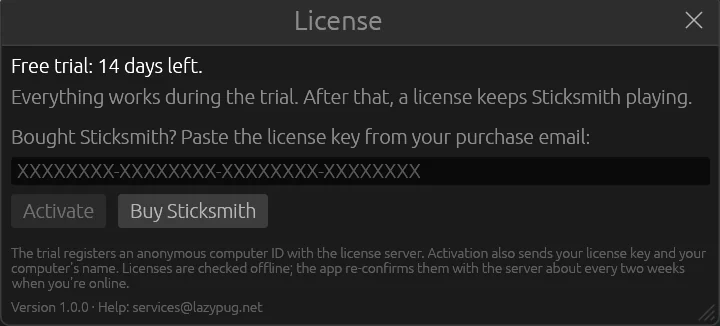
- Click the trial button at the top (or Settings → License…).
- Paste the license key from your purchase email.
- Click Activate. This needs an internet connection once.
Your kits and settings stay exactly as they were. If the trial has already ended, Sticksmith opens straight to this form.
- Up to three computers. One license works on three computers at once. Moving to a new one? Open the License window on the old computer and click Deactivate this computer first.
- Offline is fine. After activation, Sticksmith works without internet. When you're online, it re-checks the license about every two weeks.
- What's sent. Starting the trial sends an anonymous computer ID, so the trial can't be restarted. Activating also sends your license key and your computer's name. Nothing else is collected.
Making your own kit
For your own samples (WAV, FLAC, OGG or AIFF), make a folder in your kits folder with the samples and a text file called kit.toml that says which sample plays when:
name = "My Kit"
author = "Me"

[[pad]]
name = "Snare"
notes = [38]                  # the drum(s) that play this pad
velocity_sensitivity = 0.5    # 0 = flat, 0.5 = linear, 1 = soft hits much quieter
round_robin = "cycle"         # or "random"

[[pad.layer]]
velocity = [1, 70]            # soft hits
samples = ["snare/soft1.wav", "snare/soft2.wav", "snare/soft3.wav"]

[[pad.layer]]
velocity = [71, 127]          # hard hits
samples = ["snare/hard1.wav", "snare/hard2.wav"]

[[pad]]
name = "Hi-Hat Open"
notes = [46]
choked_by = 1                 # stopped when a pad in choke group 1 is hit

[[pad.layer]]
samples = ["hh/open.wav"]

[[pad]]
name = "Hi-Hat Closed"
notes = [42]
choke_group = 1

[[pad.layer]]
samples = ["hh/closed.wav"]
Several samples in one layer take turns, so repeated hits don't sound identical. Click Rescan to load the kit. The Synth Starter Kit folder has a complete working example.
| Drum | Note |
|---|---|
| Kick | 36 |
| Snare / rim / side stick | 38 / 40 / 37 |
| Toms 1 / 2 / 3 / 4 | 48 / 45 / 43 / 41 |
| Hi-hat closed / pedal / open | 42 / 44 / 46 |
| Crash 1 / 2 | 49 / 57 |
| Ride / bell / edge | 51 / 53 / 59 |
| China / splash | 52 / 55 |
Where your files are
| System | Folder |
|---|---|
| Windows | %APPDATA%\sticksmith |
| macOS | ~/Library/Application Support/sticksmith |
| Linux | Kits and your kit changes: ~/.local/share/sticksmithSettings and license: ~/.config/sticksmith |
Kits are in the kits folder and your changes to them in kit-settings. To back up your setup, copy these folders. Deleting kit-settings puts every kit back to its original sound.
Getting help
Email services@lazypug.net. It helps to say which computer and drum module you use, your Sticksmith version (shown in the License window; this guide is for 1.0.0), and what the MIDI monitor shows when you hit the drum.